How To Scan a Wine Label With Your Phone Camera for Accurate Results
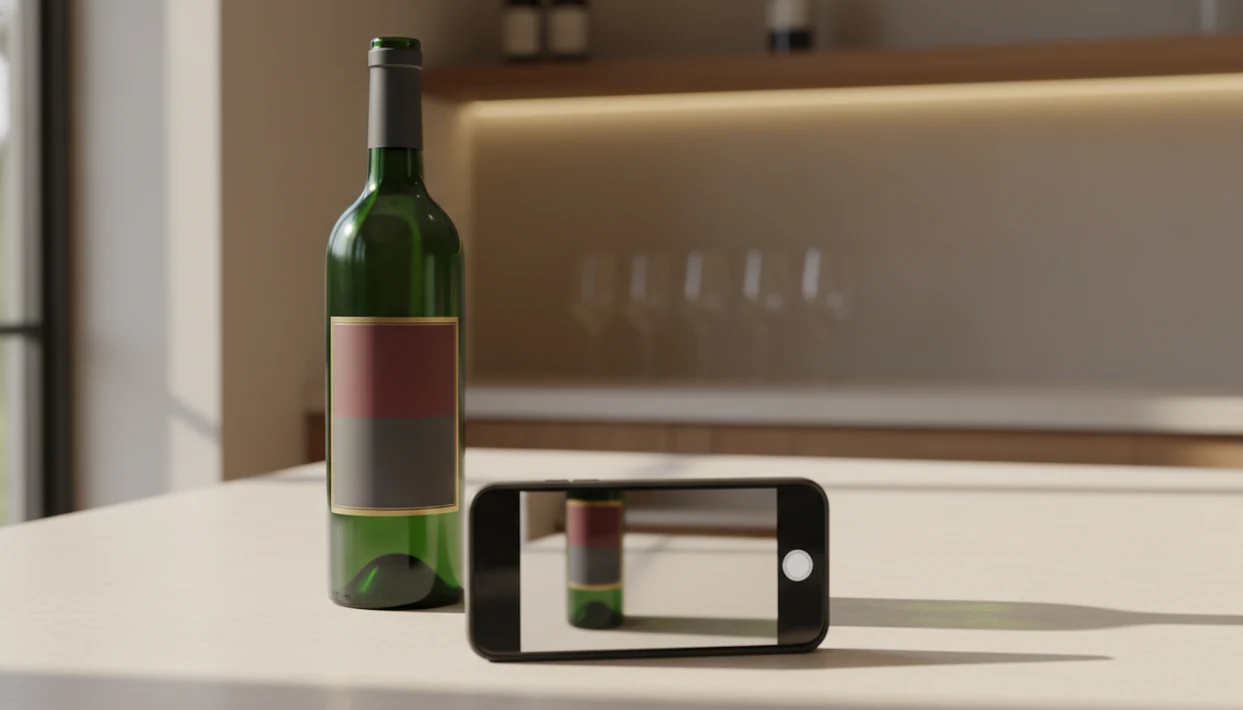


Download App: scan wine label with phone
To scan a wine label with your phone, open a wine label scanner, tap the camera icon, hold your phone steady 6–8 inches from the front label in even lighting, and snap a clear, in-focus photo so the app can identify the wine and return bottle details, ratings, and food pairings. Avoid glare, condensation, and obstructing fingers for the best recognition accuracy.
Definition: Wine label scanning is the process of using a smartphone camera and an AI-powered wine identifier app to photograph a wine bottle's front label so image recognition and OCR can identify the wine and return details such as producer, vintage, region, ratings, and food pairing recommendations.
TL;DR
- Use the scanner's camera feature in good, even lighting with the front label filling most of the screen.
- Angle the bottle slightly to eliminate glare, wipe condensation, and keep fingers off the label text.
- If a scan fails, retake the photo, crop around the label, or manually type the wine name for a database match.
Phone Camera and DiVino App Requirements Before a Wine Scan
You need a working phone camera, a current wine-scanning app, and a clean, readable front label before you scan wine with phone. Most failed scans start before the shutter, usually with glare, wet paper, or a half-hidden vintage.
- Rear camera: Use an iPhone or Android phone with a working rear camera, not a webcam or screen grab.
- Updated app: Install the latest version of DiVino before scanning, since database and recognition updates matter.
- Clean label: Wipe condensation, dust, and sticky residue from the bottle before aiming the camera.
- Clear lighting: Use window light, a lamp, or a small portable light source if the room is dim.
- Common access: In 2023, about 90% of internet users aged 16–64 reported owning or using a mobile phone, so camera-based scanning is available to most drinkers (DataReportal Digital 2023 Global Overview Report: https://datareportal.com/reports/digital-2023-global-overview-report).
I usually turn the bottle under a kitchen pendant light first. Tiny appellation lines hide near the bottom.
How Wine Label Scanning Works Behind the Scenes
Wine label scanning works by combining image recognition, OCR, and database matching to identify the bottle from its front label. The app is not just reading a barcode; it is comparing visual and text clues against known wines.
DiVino uses convolutional neural networks, or CNNs, for image classification. In plain terms, the system studies shapes, colors, label layout, crests, fonts, and bottle photography patterns. OCR then extracts text such as the winery name, vintage, cuvée, and appellation. That matters when someone whispers at dinner, “Is Rioja the grape or the place?” The scan can help separate producer, region, and grape clues.
General computer-vision systems can exceed 90% top-5 accuracy on benchmark image-classification tasks, but those benchmarks are not the same as real wine-label scanning (ImageNet leaderboard context: https://paperswithcode.com/sota/image-classification-on-imagenet). Wine labels are messier than test images: foil reflections, curved glass, wet paper, and label redesigns add noise.
Image Recognition vs. Barcode Reading
A barcode can help confirm a bottle, but it is usually a backup signal. The front label carries richer evidence: producer mark, vintage line, region, and visual identity.
For wine scanning, a sharp front-label photo is often better than a barcode photo because the label contains both readable text and distinctive visual features.
How To Scan a Wine Label With Your Phone Step by Step
Use this step-by-step method when you want the app to identify the bottle, not just save a blurry photo. In the United States, 53% of consumers have used smartphones in-store to research products or reviews, so this “scan then decide” habit is already normal.
- Open the Wine Identifier App and tap the camera icon. Give camera permission if your phone asks.
- Position the bottle so the front label fills 70–80% of the screen. Leave a slim border around the label.
- Hold steady 6–8 inches away and check for even lighting. If the vintage is fuzzy, move slightly back.
- Angle the bottle slightly to remove glare and reflections. A small wrist turn often fixes the shine.
- Tap the shutter and wait for the AI match. Don’t move until the capture finishes.
- Verify the wine name, vintage, and region on the result screen. Save only after those match the bottle.
The embossed crest on a heavy bottle can fool your eye. The camera still needs the small printed words.
If you are comparing scan tools, the wine label scanner app guide explains the broader app category.
Wine Photo Tips for Low-Light Restaurants and Bars
Dim rooms need controlled light, not a blast of direct flash. A friend’s phone flashlight held off to the side usually gives cleaner wine photo tips than pointing your own flash straight at the label.
Angle Your Light Source to Avoid Glare
Aim the light from the left or right, not from the same direction as your camera. Direct flash bounces off curved glass and can blow out the producer name. Turning flash off entirely can also fail in a very dark room because the image gets noisy and soft.
A second phone with screen brightness turned up can work as a diffuse light. Crude, but useful.
Stabilize Your Phone for Sharper Scans
Brace both elbows on the table and pause before tapping the shutter. Camera shake and low light are primary causes of blur, and motion blur becomes more likely at shutter speeds slower than 1/30 second.
At a date-night table near the window, I tuck the phone low behind the water glass before scanning. Less theater. Better angle.
Common Wine Label Scanning Mistakes to Avoid
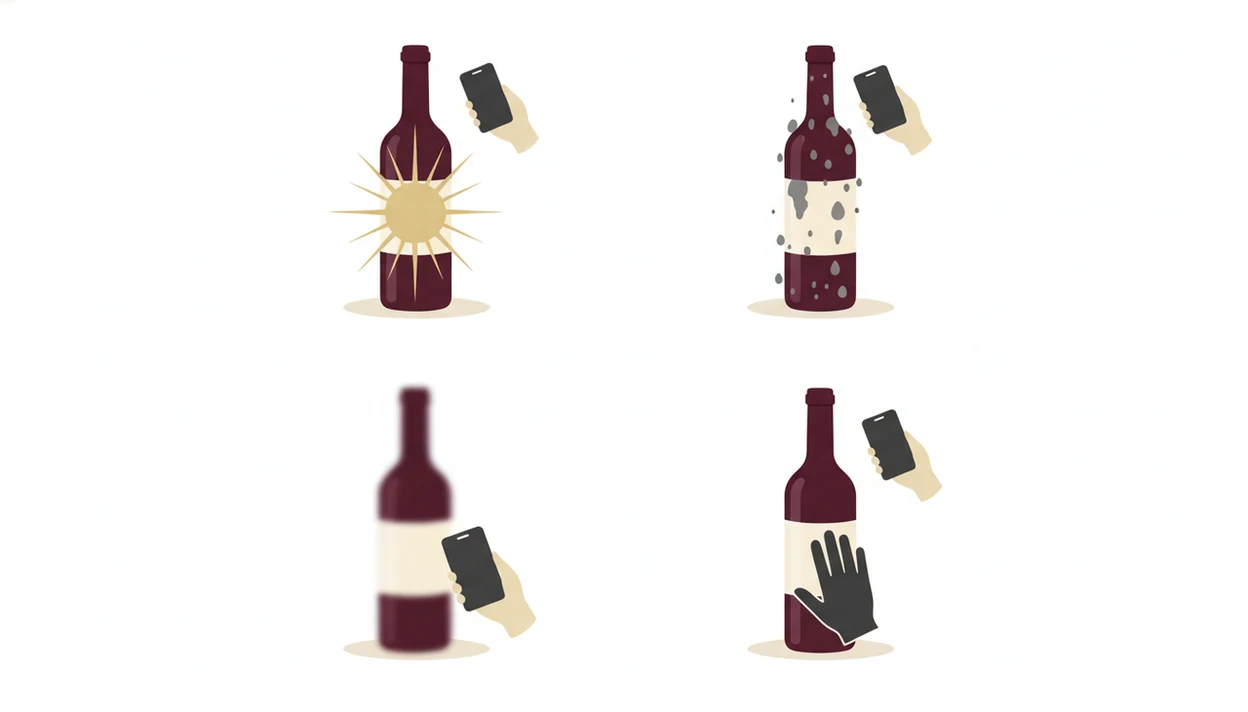
Most wine scan mistakes are ordinary camera mistakes: too far, too close, too dark, or partly blocked. AI still needs readable text and clear visual features.
Avoid shooting from across the table, where the winery name turns into decoration. Do not cover the vintage with your thumb, a price tag, or a shelf label. The front label should be the target, not the back label with importer text.
Getting too close can be just as bad. Phones often hunt for focus at short distances, especially on curved bottles. I have seen a scan fail because a phone camera shadow crossed the label right over the appellation line.
Wipe wet labels before scanning. Condensation softens paper, smears ink, and turns small print into a gray patch.
A quick, blurry snap is not enough. For people deciding between two bottles in a shop, a steady scan is usually faster than typing because it captures producer, vintage, and region together.
Wine Scan Failure Troubleshooting
Why did my wine scan fail? A scan usually fails because the image is hard to read, the label has too little text, or the bottle is missing from the database.
Retake the photo first. Improve the light, fill more of the frame with the front label, and angle the glass away from reflections. If the app allows it, crop tightly around the label before resubmitting. That removes shelf clutter, hands, tablecloth patterns, and other visual noise.
Use manual text search next. Type the winery name, vintage, region, or cuvée exactly as the label shows it. A confused glance at old-world labels is normal here; look for the region before the romance.
Small producers, private labels, older vintages, and limited releases may not appear in any database yet. Minimalist labels can also confuse OCR because there is little text to extract.
A failed scan is feedback. Adjust distance, angle, and lighting each time.
For a broader explanation of photo-based matching, the app that identifies wine from picture page covers the same workflow in more detail.
How To Verify Wine Scan Results
Always verify the match before saving, buying, or using the pairing advice. No wine scanner is 100% accurate, especially when vintages, cuvées, or label designs change.
Start with the vintage year. If your bottle says 2018 and the result says 2020, pause. Next, compare the producer name and appellation. A Chianti Classico and a Toscana IGT from the same producer may look related, but they are not the same wine.
Look at the label thumbnail in the result screen beside your bottle. Redesigns can be subtle: a moved crest, a new cuvée name, or a different vineyard line. I once caught a mismatch because the scanned bottle had cherry-skin Sangiovese notes, but the result was for the producer’s softer entry wine.
Save the correct match to your cellar only after checking. Tools like Wine Identifier App help turn one scan into a tasting note, a pairing cue, and a future reference.
Good divino ai wine identification and sommelier app tools deliver faster label recognition and practical pairing context, not a replacement for checking the bottle in your hand.
If you are still choosing a tool, the best wine identifier app guide compares common scanning workflows.
Evidence Behind These Wine Photo Tips
These tips are not just scanner folklore: they come from basic phone photography and OCR behavior. Authoritative camera guidance from Adobe and major phone makers consistently points to the same fixes for blur and low light: add steadier light, hold the camera still, and avoid relying on harsh direct flash.
- Treat the label like small print, not scenery. OCR needs crisp letter edges. Glare washes out contrast, condensation diffuses ink and paper texture, and too much distance turns vintage and appellation lines into mush.
- Control the light before you rescan. Use side light, window light, or another phone as a soft lamp so the glass curve does not reflect a white streak over the producer name.
- Compare uncertain matches across databases. Vivino, Delectable, CellarTracker, and app-specific wine databases may surface different vintages, label photos, or community notes.
- Use in-store research claims carefully. Shopper studies show that many people use phones while choosing products, but the exact share varies by country, category, and survey method.
- Verify before acting. Human checking is still required before purchase, food pairing, or cellar logging; confirm producer, vintage, region, and label image against the bottle in your hand.
Limitations
Wine label scanning is useful, but it depends on the photo, the label, and the database. Manual input is sometimes the correct next step.
- Very low light can break the first scan. Heavy glare, camera shake, and dim restaurant corners make text harder to read.
- Database coverage is uneven. Small producers, limited releases, private bottlings, and older vintages may not appear.
- Minimal labels confuse OCR. A stark label with only a symbol gives the system fewer text clues.
- Community ratings have bias. Notes may reflect another vintage, a different storage condition, or one taster’s palate.
- Distance matters. Too close causes focus hunting; too far makes the vintage and appellation unreadable.
- Back labels are weaker targets. Importer notes help sometimes, but the front label usually carries the identity.
- No app recognizes every wine. Even a clean photo can require manual search.
The blank note field after a first taste is not a failure. It is where your own memory starts.
Read more
FAQ
Can I scan wine labels on iPhone?
Yes, you can scan wine labels on iPhone by opening DiVino, tapping the camera icon, and photographing the front label in clear light. Keep the phone about 6–8 inches from the bottle.
Does wine label scanning work on Android?
Yes, DiVino is available for iPhone; Android users can use AI Lens as a companion visual search tool. Update the app before scanning for the latest recognition and database improvements.
Is there a free wine scanner app?
DiVino offers free wine scans, with premium features available for deeper cellar tracking, recommendations, or expanded tools. The free wine label scanner app guide covers free options.
How close should my phone be to the label?
Hold your phone about 6–8 inches from the label. Too close can cause focus problems, while too far makes text unreadable.
Why does my wine scan fail in restaurants?
Restaurant scans often fail because of low light, glare from glass, and camera shake. Use angled light and brace your elbows before taking the photo.
Can I scan the back label instead of the front label?
The front label is better because it contains the producer, visual design, region, and vintage cues the AI needs. A back label may help, but it is usually secondary.
Does wine scanning work offline?
Wine scanning usually needs an internet connection because the app must query a wine database. Offline photos may need to be scanned again once your connection returns.
How accurate are wine label scanners?
AI wine label scanners can be accurate when the photo is sharp, the label is readable, and the wine exists in the database. Results still require checking the producer, vintage, and region before saving.