How To Scan Wine Menu With Phone At Dinner


Download App: how to scan wine menu with phone
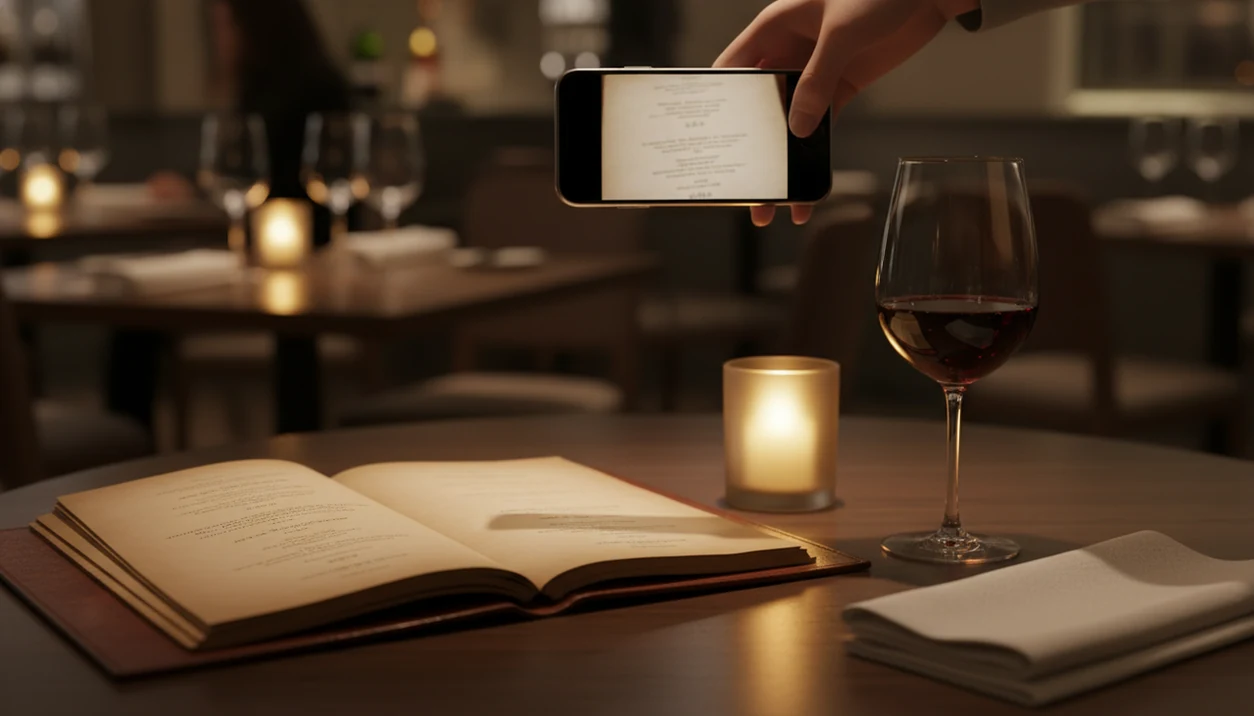
Here is how to scan wine menu with phone: open a wine identification app like DiVino, point your camera at the wine list, and take a clear, straight-on photo so the AI can recognize wines and show ratings, prices, and food pairings. The process usually takes under 30 seconds and works on both iPhone and Android.
Definition: Scanning a wine menu with your phone means using a dedicated wine app's camera feature to photograph a restaurant wine list so AI can identify each wine and surface ratings, tasting notes, price comparisons, and food pairing suggestions in real time.
TL;DR
- Use a dedicated wine app, not just your camera, to scan the wine list for instant ratings and pairing suggestions.
- Good lighting, a steady hand, and a straight-on angle dramatically improve scan accuracy.
- Combine the scan results with your meal choice, budget, and taste preferences for the strongest recommendation.
What Scanning a Wine Menu With Your Phone Actually Does
Scanning a wine menu with your phone is not the same as taking a normal photo. A camera photo saves the page; a wine-app scan reads the text, identifies wines, and turns the list into usable choices.
The useful part happens after the shutter. OCR, short for optical character recognition, pulls out producer names, regions, vintages, and cuvée names. Then the app matches those words against wine databases. If the menu says “Rioja Reserva 2018,” the app should understand that Rioja is the place, not the grape.
That distinction matters at the table.
Pew Research Center has documented shoppers using phones for in-the-moment product decisions, including checking reviews and price information while away from home (https://www.pewresearch.org/internet/2012/01/30/the-rise-of-in-store-mobile-commerce/). Wine scanning is a more focused version of that behavior.
Requirements Before You Scan a Restaurant Wine List
Before you scan a restaurant wine list, check the basics: camera, app, connection, battery, and enough light to read the producer line. Most failed scans come from one missing piece, not from the wine being obscure.
- Working rear camera: A smartphone with a clean rear lens is enough for most wine lists. Pew Research Center reported that 81% of U.S. adults owned a smartphone in 2019, with adoption rising after that point (https://www.pewresearch.org/internet/fact-sheet/mobile/).
- Wine scanning app: Install an app that can scan restaurant menu text, such as Wine Identifier App or similar tools. A regular camera app will not compare wines.
- Basic setup: Add taste preferences if the app asks. “Bright acidity” and “soft tannins” help more than “good red.”
- Battery room: Keep enough charge for camera use and database lookup. Restaurant scans are not battery-free.
- Dim-room adjustment: Raise screen brightness or use the phone flashlight briefly if the paper is too dark.
If you want a broader comparison, the best wine menu scanner app guide covers the main app styles.
How Wine Menu Scanning Technology Works Behind the Scenes
Wine menu scanning works by combining OCR, wine matching, and recommendation logic. OCR extracts printed words from the photo; the app then compares those words with known wines, vintages, regions, and producers.
The matching step is where things get interesting. A line like “Domaine Tempier Bandol 2020” has several clues: producer, appellation, and vintage. The system looks for the strongest match, then retrieves ratings, tasting notes, review counts, retail price ranges, and style clues. If you enter your dish, a pairing engine can cross-reference the scanned wines against the food.
Pair the sauce, not only the protein.
A strong wine-scanning app can add an AI sommelier layer after the scan. That lets you ask a follow-up question, such as whether the Burgundy or the Etna Rosso fits roast chicken better. The best experience delivers label and menu intelligence, not a promise that every table needs a phone expert.
How To Scan a Wine Menu With Your Phone Step by Step
To scan a wine menu with your phone, open the wine app’s camera, capture the list straight-on, and review the matched wines before ordering. For most diners, scanning one section at a time is easier than photographing the whole list because wine names stay readable.
- Open DiVino or your wine app and tap the scan or camera icon.
- Hold the phone parallel to the menu page about 8 to 12 inches away.
- Frame the full wine names and vintages so producer, region, and year are visible.
- Tap to capture a clear, well-lit photo and use the phone flashlight if the room is too dim.
- Review the matched wines, ratings, prices, and pairings instead of choosing from score alone.
- Ask a follow-up question like, “Which pairs best with my steak under $70?”
The phone tucked behind the water glass is a familiar move now. Keep it quick, then return to the table. If you need a more focused tool, an app that scans restaurant wine list can narrow the choice faster than general search.
Wine List Photo Tips for Clearer Scan Results
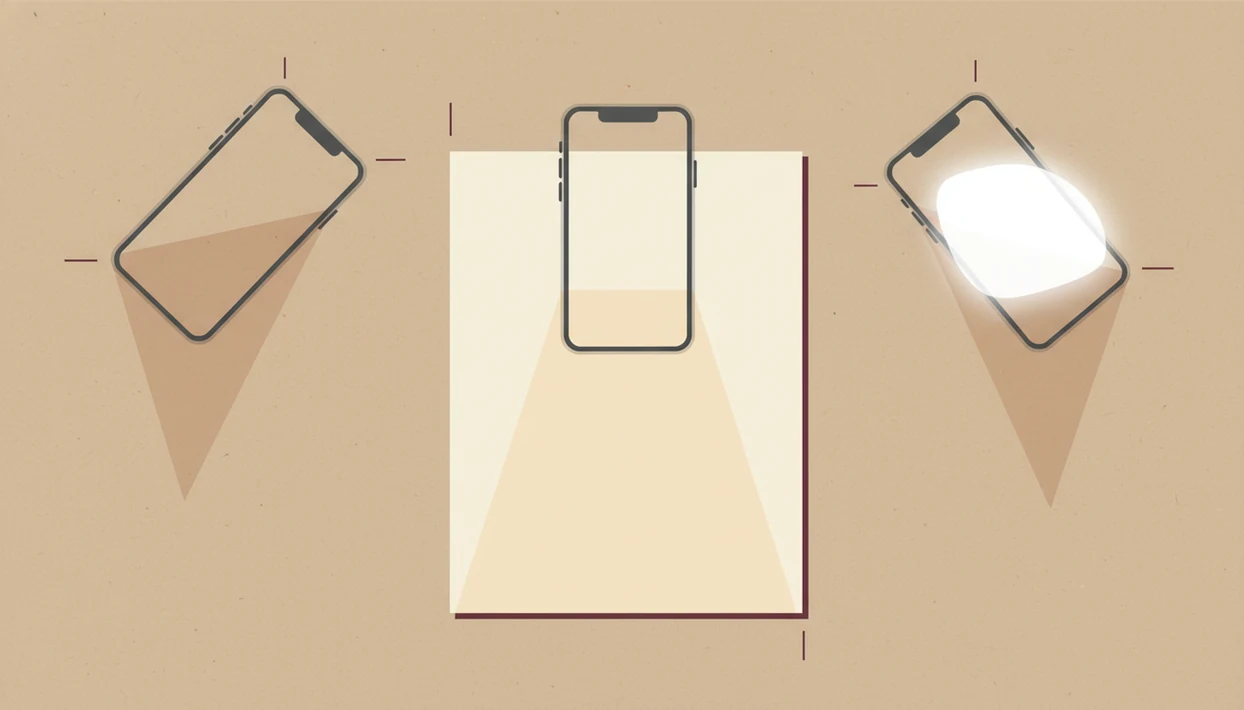
Clear wine list photos produce better scan results because OCR needs readable text edges. Treat the menu like a label: flat, steady, and bright enough to catch the tiny vintage line.
- Angle: Shoot straight-on, not from the side. Angled text bends, especially on long Champagne and Burgundy names.
- Lighting: Tilt the menu away from glare caused by plastic covers or overhead bulbs.
- Stability: Brace your elbows on the table before you tap the shutter. It looks small, but it helps.
- Cropping: Scan one page, column, or section at a time if the list is long.
- Retry: Retake the photo if any wine name, producer, or vintage is cut off.
One practical trick: tap the screen on the producer name before capturing. I use the same habit when turning a bottle under a kitchen pendant light to find the tiny appellation line. Start with the label, or in this case, the printed line.
How To Read Wine App Ratings, Prices, and Pairings
Read wine scan results by weighing rating, review count, vintage, price, and food match together. The highest score is not automatically the right bottle for your table.
A 4.4 rating from 12 reviews is less stable than a 4.1 rating from several thousand reviews. Price matters too. The sweet spot is often a bottle with a strong score, enough reviews, and a menu price that still fits your budget. Remember that restaurant pricing is not retail pricing.
Vintage can change the answer. A warm-year Chianti may taste riper and softer than a cooler-year version from the same producer. If you are ordering tomato-braised pasta, cherry-skin bitterness in Sangiovese may help the dish feel brighter.
A 2013 consumer study found that 81% of shoppers research products online before purchase. Wine lists are no different. For dinner decisions, scan data works best when it supports what you are actually ordering, not when it replaces taste.
For pairing-first choices, an app to help choose wine at restaurant can be more useful than sorting by rating alone.
Common Mistakes When Scanning a Restaurant Wine List
The most common mistake is using the default camera app and expecting wine results. A photo can preserve the list, but it will not identify producers, compare vintages, or suggest pairings without a wine-scanning tool.
Another trap is assuming every bottle exists in the database. Boutique producers, new releases, private imports, and restaurant-exclusive labels may be missing. An importer sticker on curved green glass can sometimes help with a bottle scan, but a menu line may not carry enough detail.
Don’t let the highest rating boss you around.
Meal and budget still matter. A rich Napa Cabernet may be admired by many users, but it can flatten delicate fish or clash with lemon-zest acidity in goat cheese. Extremely dim light also causes trouble, so use the flashlight briefly rather than squinting through three bad scans.
The final mistake is social. If the scan takes too long, ask the server. Dinner is not a research project.
Verify Your Wine Choice Before Ordering
Before ordering, verify the vintage, price, and availability with the physical menu or the server. A scan narrows the choice, but the restaurant list is still the source of truth at the table.
Cross-check the vintage first. If the menu says 2019 and the app matched 2020, tasting notes and prices may not apply cleanly. Confirm the price on the printed list too, since restaurant markups differ from retail estimates. Then ask, “Do you still have this vintage?” Servers and sommeliers hear that question often.
Gallup reported that 31% of U.S. drinkers prefer wine, so wine questions are normal, not fussy. If the bottle works, save it in Wine Identifier App for later cellar tracking or tasting notes. For a deeper decision framework, the find best wine on menu guide explains how to compare style, value, and food fit.
Limitations
Wine menu scanning is useful, but it is not flawless. The scan is only as good as the photo, the printed list, and the database behind the app.
- Dim dining rooms can make wine names unreadable, especially on gray paper.
- Glare from laminated menus can block OCR even when the text looks clear to your eye.
- No app database is complete; boutique producers, new releases, and restaurant-only labels may have no match.
- Crowdsourced ratings can favor popular regions and ripe styles, not your own palate.
- Long wine lists take time to scan and can pull attention away from the people at the table.
- AI pairing suggestions are improving, but a skilled sommelier is still better for rare bottles or complex tasting menus.
- Heavily stylized, handwritten, or script-heavy wine lists may not be readable by OCR.
- Restaurant prices may differ sharply from the app’s retail price data.
Use the scan as a useful shortcut, not a rule.
Read more
FAQ
Can I scan a wine menu on iPhone?
Yes. Most wine-scanning apps work on iPhone by using the in-app camera to photograph the wine list and match the text to wine data.
Is there a free wine list scanner?
Yes. Some wine-scanning apps offer free scanning tiers, with optional paid features for deeper recommendations, cellar tools, or advanced pairing.
Does wine scanning work on Android?
Yes. Most wine scanning apps work on Android if the phone has a working rear camera and can run the current app version.
How accurate is phone wine scanning?
Accuracy depends on photo quality, lighting, text clarity, and database coverage. Well-known wines are usually easier to match than small-production or local bottles.
Can I scan wine menus in dim light?
Yes, but low light can reduce accuracy. Use the phone flashlight briefly or raise screen brightness if the menu text looks soft or shadowed.
Does scanning a wine menu need Wi-Fi?
Usually, yes. Most apps need Wi-Fi or cellular data to match wines against a cloud database and retrieve ratings, prices, and tasting notes.
Is it rude to photograph a wine list?
Brief, discreet scanning is widely accepted in many restaurants. Keep the phone low, avoid flash if it bothers the table, and ask the server if unsure.
Can I scan a wine bottle label instead?
Yes. Bottle label scanning is often supported and can return more detailed results than a menu scan because the label includes producer, cuvée, and appellation clues.